 **[Live Demo](https://maketips.net/paste)** | [npm](https://www.npmjs.com/package/painterro) | [GitHub](https://github.com/devforth/painterro)
   
JavaScript painting plugin which allows editing images in a browser.
Can be easily integrated into any website or webapp by including only one JS file and calling simple initialization code.
Features
=================
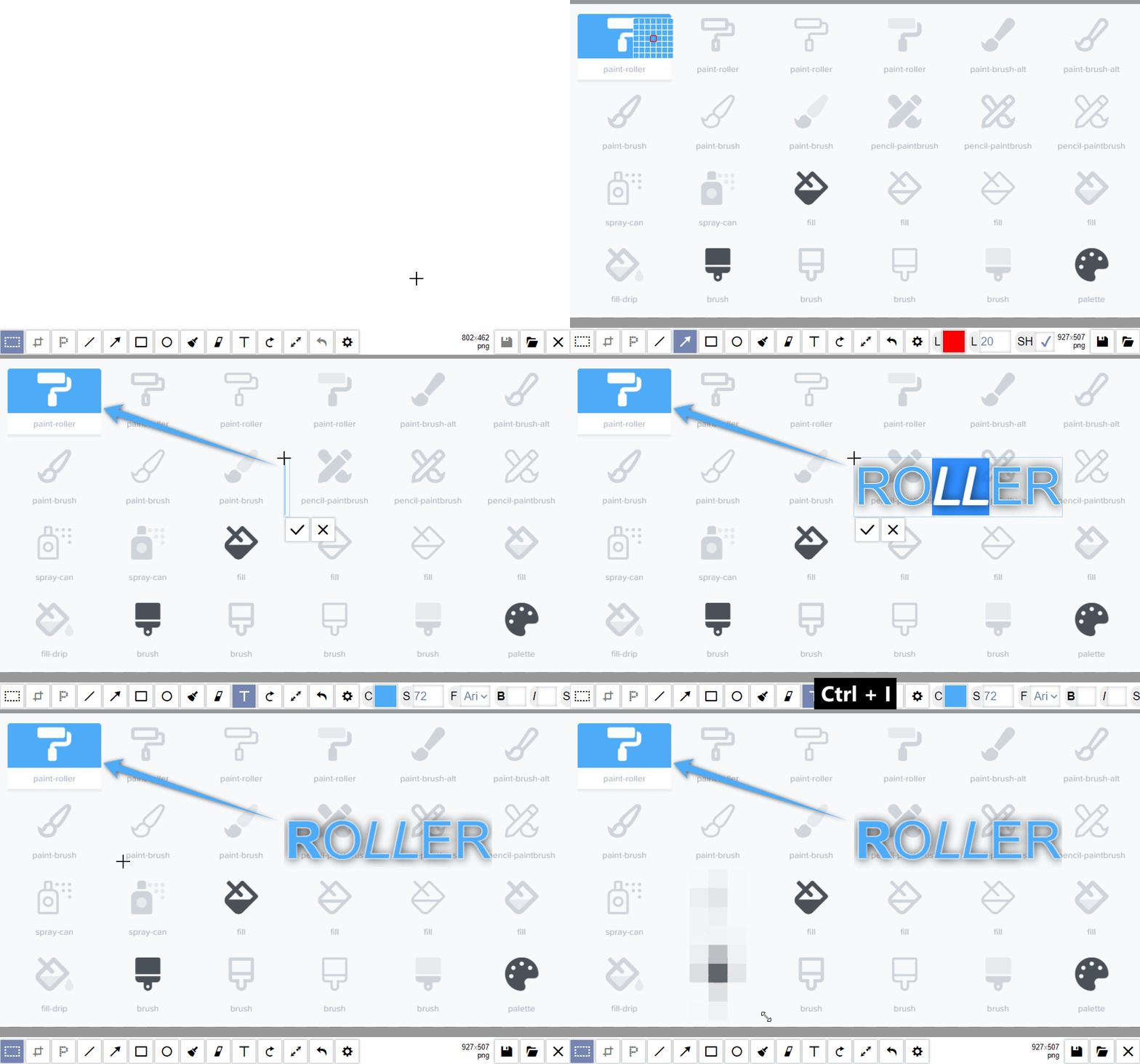
- Paste image from clipboard with `Ctrl+V` (e.g. `PtnScr` screenshot), drag and drop it into widget, or load with file select dialog
- Crop image by defined area
- Paint primitives: line, rectangle, ellipse (alpha color can be used)
- Add text (you can use `Ctrl+B` - bold, `Ctrl+I` - italic, `Ctrl+U` - underlined, or just pase formatted HTML)
- Rotate / resize, scale image
- Pixelize some area to hide sensitive data
- Draw arrows
**[Live Demo](https://maketips.net/paste)** | [npm](https://www.npmjs.com/package/painterro) | [GitHub](https://github.com/devforth/painterro)
   
JavaScript painting plugin which allows editing images in a browser.
Can be easily integrated into any website or webapp by including only one JS file and calling simple initialization code.
Features
=================
- Paste image from clipboard with `Ctrl+V` (e.g. `PtnScr` screenshot), drag and drop it into widget, or load with file select dialog
- Crop image by defined area
- Paint primitives: line, rectangle, ellipse (alpha color can be used)
- Add text (you can use `Ctrl+B` - bold, `Ctrl+I` - italic, `Ctrl+U` - underlined, or just pase formatted HTML)
- Rotate / resize, scale image
- Pixelize some area to hide sensitive data
- Draw arrows
 Advantages
=================
- It is lightweight and minimalistic - written with vanilla JS, you don't need dependencies to use it
- Designed to process images with minimal clicks, most actions support hot-keys
- Could be easily integrated into SPA application (React, Vue, Angular)
- Could be used in Electron and Cordova apps
- Flexibale image saving - you provide your save handler, and get base64 data with any jpeg/png compression
- Could be translated to any language
Originally Painterro was designed for quick screenshots processing: You make screenshot by pressing `PrtSc` button,
then open Painterro on your website, paste an image with `Ctrl+V`,
crop it to interested area, highlight something with line/rectangle tool and/or add some text
to the image and save on server with custom save handler (e.g. simple `XHR` request to your backend).
In addition, you can use Painterro as image editor for any kind of raster images. Please try a [demo](https://maketips.net/paste).
Also painterro has [Wordpress Plugin](https://wordpress.org/plugins/painterro/).
If you want to see some feature in Painterro, please leave (or vote for) an issue [here](https://github.com/devforth/painterro/issues).
There is no promise that it will be implemented soon or ever, but it is interesting to know what features users want to have.
Table of contents
=================
* [Table of contents](#table-of-contents)
* [Installation](#installation)
* [With npm](#with-npm)
* [By including script](#by-including-script)
* [Read after installation](#read-after-installation)
* [Supported hotkeys](#supported-hotkeys)
* [Configuration](#configuration)
* [Events](#events)
* [UI color scheme](#ui-color-scheme)
* [API](#api)
* [Translation](#translation)
* [Saving image](#saving-image)
* [Base64 saving](#base64-saving)
* [Binary saving](#binary-saving)
* [Saving to WYSIWYG](#saving-to-wysiwyg)
* [Format and quality](#format-and-quality)
* [Example: Open Painterro by Ctrl+V](#example-open-painterro-by-ctrlv)
* [Development](#development)
* [Building painterro](#building-painterro)
* [Dev-server](#dev-server)
* [Regenerating icons font](#regenerating-icons-font)
Installation
============
With npm
--------
If you have npm-based project (e.g. SPA like React/Vue) you can run:
```bash
npm install painterro --save
```
Then in your code
```js
import Painterro from 'painterro'
...
Painterro().show()
```
By including script
-------------------
You can download latest `painterro-*.min.js` here https://github.com/devforth/painterro/releases/
or [build it by yourself](#building-painterro).
Then insert `
```
Then in your code:
```html
```
See [fiddle example](https://jsfiddle.net/vanbrosh/Levaqoeh/10/)
Read after installation
-----------------------
To be able to save edited images on server or client see [Saving image](#saving-image). For configurations see [Configuration](#configuration)
Supported hotkeys
=================
|||
|-|-|
| `Ctrl + Z` | Cancel last operation |
| `Ctrl + V` | Paste image from clipboard |
| `Ctrl + C` | Copy selected aria to clipboard (*internal keyboard) |
| `Shift` when drawing **rect**/**ellipse** | Draw **square**/**circle** |
| `Shift` when drawing **line** | draw at angles of `0`, `45`, `90`, `135` etc degrees |
| `Alt` when using pipette | Hide zoom helper (colored grid) |
| `Ctrl` + `Wheel mouse up/down` | Zoom image |
| `Ctrl + S` | Save image |
Also some tools have own one-button hotkeys e.g. `C` - crop, you could see this shortcuts if you will hold mouse on toolbutton.
Configuration
=============
You can pass parameters map to Painterro constructor:
```js
Painterro({
activeColor: '#00ff00', // default brush color is green
// ... other params here
})
```
| Param | Description | Default |
|-|-|-|
| `id` | If provided, then Painterro will be placed to some holder on page with this `id`, in other case holder-element will be created (fullscreen with margins) | `undefined` |
|`activeColor`| Line/Text color that selected by default | `'#ff0000'` |
|`activeColorAlpha` | Transparancy of `activeColor` from `0.0` to `1.0`, `0.0` = transparent | `1` |
|`activeFillColor` | Fill color that selected by default | `'#000000'` |
|`activeFillColorAlpha` | Transparancy of `activeColor` from `0.0` to `1.0` | `0` |
|`defaultLineWidth` | Line width in `px` that selected by default | `5` |
|`defaultEraserWidth` | Eraser width in `px` that selected by default | `5` |
|`backgroundFillColor` | Default background color when image created/erased | `'#ffffff'` |
|`backgroundFillColorAlpha`| Transparancy of `backgroundFillColor` from `0.0` to `1.0` | `1.0` |
|`textStrokeColor`| Stroke color of text tool | `'#ffffff'` |
|`textStrokeColorAlpha`| Stroke color of text tool | `1.0` |
|`defaultFontSize` | Default font size in pixels | `24` |
|`defaultSize` | default image size, should be string in format `x` in pixel, e.g. `'200x100'`. If value is `'fill'`(default) than all container size will be used | `'fill'` |
|`fontStrokeSize` | default stroke width of text | `0` |
|`defaultTool` | Tool selected by default | `'select'` |
|`hiddenTools` | List of tools that you wish to exclude from toolbar e.g. something from this list `['crop', 'line', 'arrow', 'rect', 'ellipse', 'brush', 'text', 'rotate', 'resize', 'save', 'open', 'close']`, You can't hide default tool | `['redo']` |
|`initText` | Display some centered text before painting (supports HTML). If null, no text will be shown | `null` |
|`initTextColor` | Color of init text | `'#808080'` |
|`initTextStyle` | Style of init text | `"26px 'Open Sans', sans-serif"` |
|`pixelizePixelSize` | Default pixel size of pixelize tool. Can accept values - `x` - x pixels, `x%` - means percents of minimal area rectangle side | `20%` |
|`availableLineWidths` | A list of the line width values that are available for selection in a drop down list e.g. `[1,2,4,8,16,64]`. Otherwise an input field is used. | `undefined` |
|`availableArrowLengths` | A list of the arrow sizes values that are available for selection in a drop down list e.g. `[10,20,30,40,50,60]`. Otherwise an input field is used. | `undefined` |
| `defaultArrowLength` | default arrow length | `15` |
|`availableEraserWidths` | A list of the eraser width values that are available for selection in a drop down list e.g. `[1,2,4,8,16,64]`. Otherwise an input field is used. | `undefined` |
|`availableFontSizes` | A list of the font size values that are available for selection in a drop down list e.g. `[1,2,4,8,16,64]`. Otherwise an input field is used. | `undefined` |
|`toolbarPosition` | Whether to position the toolbar at the top or bottom. | `'bottom'` |
|`fixMobilePageReloader` | By default painterro adds overflow-y: hidden to page body on mobile devices to prevent "super smart" feature lice Chrom's reload page. Unfortunately we can't prevent it by preventDefault. If your want to scroll page when painterro is open, set this to false | `true` |
|`language` | Language of the widget. | `'en'` |
|`how_to_paste_actions`| List of paste options that will be suggested on paste using some paste dialog e.g. `['extend_right', 'extend_down'] `. If there is only one option in list, then it will choosing automatically without dialog | `['replace_all', 'paste_over', 'extend_right', 'extend_down']` |
|`hideByEsc`| If `true` then `ESC` press will hide widget | `false` |
|`saveByEnter`| If `true` then `ENTER` press will do same as `Ctrl+S` | `false` |
## Events
| Param | Description | Accepted Arguments |
|-|-|-|
| `onClose` | If passed will be triggered when painterro closed | `undefined` |
| `onChange` | Function that will be called if something will be changed (painted, erased, resized, etc) | `` | `undefined` |
| `onUndo` | Function that will be called if user will undo (`Ctrl+Z`) | `{}` |
| `onRedo` | Function that will be called if user will redo (`Ctrl+Z`) | `{}` |
| `onImageLoaded` | Function that will be called if you passed image to `show` and when it was loaded | `undefined` |
| `saveHandler` | Function that will be called when user presses Save (or `Ctrl+S`) | `{}`, `done callback` |
Events accepted arguments:
* `{}` is object:
```
{
image: {
asBlob: ƒ asBlob(type, quality)
asDataURL: ƒ asDataURL(type, quality)
suggestedFileName: ƒ suggestedFileName(type)
getWidth: ƒ getWidth()
getHeight: ƒ getHeight()
}
operationsDone: int
}
```
* `{}` is object:
```
{
prev: {} or undefined
next: {} or undefined
prevCount: int
sizeh: int
sizew: int
}
```
UI color scheme
---------------
Next group of params used to configure painterro user interface.
They should be placed under `colorScheme` group, for example:
```js
Painterro({
colorScheme: {
main: '#fdf6b8', // make panels light-yellow
control: '#FECF67' // change controls color
}
}).show()
```
| Param | Description | Default |
|-|-|-|
|`main` | Color of panels, take most of UI space | `'#dbebff'` |
|`control` | Color of controls background (e.g. button background) | `'#abc6ff'` |
|`controlContent` | Content of controls (e.g. button text) | `'#000000'` |
|`activeControl` | Color for control when it active (e.g. button pressed) | `'#7485B1'` |
|`activeControlContent` | Color for activated control content | `main` |
|`inputBorderColor` | You can add border to inputs, by default color is same as `main` so borders will not be seen | `main` |
|`inputBackground` | Background of inputs | `'#ffffff'` |
|`inputText` | Color of text in input | `activeControl` |
|`backgroundColor`| Background color of component area which left outside of image due to it size/ratio | `'#999999'` |
|`dragOverBarColor`| Color of bar when dropping file to painterro | `'#899dff'` |
|`hoverControl`| Controls color when mouse hovered | `control` |
|`hoverControlContent`| Controls background color when mouse hovered | `'#1a3d67'` |
|`toolControlNameColor`| Color of toolbar labels that prepend controls | `rgba(255,255,255,0.7)` |
API
-------
**.show(openImage)** - Shows painterro instance. `openImage` can have next values:
* `false` - will open image that already was drawn before last close
* `some string value`, e.g. `'http://placehold.it/120x120&text=image1'` - will try to load image from url
* all another values - will clear content before open
**.hide()** - hide instance
**.save()** - call save (same save as on buttons bar). Can be used if save button is hidden (`hiddenTools: ['save']`)
Example:
```js
var p = Painterro()
p.show()
```
Translation
-----------
Want to translate Painterro into your language?
If you need one of languages in table below, just pass pass `language` parameter, for example:
```js
Painterro({
language: 'es' // Spanish
}).show()
```
Translated languages:
| `language` param | Name |
|-|-|
| `ca` | Catalan |
| `fa` | Iran-Farsi (Persian (Ir-Fa) |
| `fr` | French |
| `en` | English |
| `es` | Spanish |
| `pt-PT` | European Portuguese |
| `pt-BR` | Brazilian Portuguese |
If you want to add another language, then fork. Create file in folder langs for your translation and copy [langs/en.lang.js] in it. Then translate all `'Strings'` and add reference in [js/translation.js]. After that create pull-request, or just open [issue](https://github.com/devforth/painterro/issues)
if you don't know how to create a PR.
If you want to translate or change strings without contributing you can do this by passing
`translation` parameter, for example:
```js
Painterro({
translation: {
name: 'ua',
strings: {
apply: 'Застосувати'
// other strings
}
}
}).show()
```
For all strings that can be translated, see [langs/en.lang.js]
Saving image
============
You should provide your save handler, which will post/update image on server or will pass image to another
frontend components.
Binary saving
-------------
You can post data with binary `multipart/form-data` request which is the most efficient way to pass data to backend. Example uses raw `XMLHttpRequest`. Of course,
you can use `fetch`, `jQuery`, etc insead.
```js
var ptro = Painterro({
saveHandler: function (image, done) {
var formData = new FormData();
formData.append('image', image.asBlob());
// you can also pass suggested filename
// formData.append('image', image.asBlob(), image.suggestedFileName());
var xhr = new XMLHttpRequest();
xhr.open('POST', 'http://127.0.0.1:5000/save-as-binary/', true);
xhr.onload = xhr.onerror = function () {
done(true);
};
xhr.send(formData);
}
})
ptro.show();
```
Here is python flask backend example (of course same can be implemented using any technology):
```python
@app.route("/save-as-binary/", methods=['POST'])
def binary_saver():
filename = '{:10d}.png'.format(int(time())) # generate some filename
filepath = os.path.join(get_tmp_dir(), filename)
request.files['image'].save(filepath)
return jsonify({})
```
See full example in `example` directory. You can run it used python3 with installed `Flask` (`pip install flask`).
Base64 saving
-------------
You can also same image by posting `base64` string via plain POST json call.
Please note that base64 encoding is less efficient then binary data, for example some `1920 x 1080` image took `402398` bytes for `base64` upload.
The same image took `301949` bytes with `multipart/form-data`.
```js
var ptro = Painterro({
saveHandler: function (image, done) {
// of course, instead of raw XHR you can use fetch, jQuery, etc
var xhr = new XMLHttpRequest();
xhr.open("POST", "http://127.0.0.1:5000/save-as-base64/");
xhr.setRequestHeader("Content-Type", "application/json");
xhr.send(JSON.stringify({
image: image.asDataURL()
}));
xhr.onload = function (e) {
// after saving is done, call done callback
done(true); //done(true) will hide painterro, done(false) will leave opened
}
},
activeColor: '#00b400' // change active color to green
});
ptro.show();
```
Backend should convert `base64` to binary and save file:
```python
@app.route("/save-as-base64/", methods=['POST'])
def base64_saver():
filename = '{:10d}.png'.format(int(time())) # generate some filename
filepath = os.path.join(get_tmp_dir(), filename)
with open(filepath, "wb") as fh:
base64_data = request.json['image'].replace('data:image/png;base64,', '')
fh.write(base64.b64decode(base64_data))
return jsonify({})
```
Saving to WYSIWYG
-----------------
You can just insert image as data url to any WYSIWYG editor, e.g. TinyMCE:
```js
tinymce.init({ selector:'textarea', });
var ptro = Painterro({
saveHandler: function (image, done) {
tinymce.activeEditor.execCommand('mceInsertContent', false, '
Advantages
=================
- It is lightweight and minimalistic - written with vanilla JS, you don't need dependencies to use it
- Designed to process images with minimal clicks, most actions support hot-keys
- Could be easily integrated into SPA application (React, Vue, Angular)
- Could be used in Electron and Cordova apps
- Flexibale image saving - you provide your save handler, and get base64 data with any jpeg/png compression
- Could be translated to any language
Originally Painterro was designed for quick screenshots processing: You make screenshot by pressing `PrtSc` button,
then open Painterro on your website, paste an image with `Ctrl+V`,
crop it to interested area, highlight something with line/rectangle tool and/or add some text
to the image and save on server with custom save handler (e.g. simple `XHR` request to your backend).
In addition, you can use Painterro as image editor for any kind of raster images. Please try a [demo](https://maketips.net/paste).
Also painterro has [Wordpress Plugin](https://wordpress.org/plugins/painterro/).
If you want to see some feature in Painterro, please leave (or vote for) an issue [here](https://github.com/devforth/painterro/issues).
There is no promise that it will be implemented soon or ever, but it is interesting to know what features users want to have.
Table of contents
=================
* [Table of contents](#table-of-contents)
* [Installation](#installation)
* [With npm](#with-npm)
* [By including script](#by-including-script)
* [Read after installation](#read-after-installation)
* [Supported hotkeys](#supported-hotkeys)
* [Configuration](#configuration)
* [Events](#events)
* [UI color scheme](#ui-color-scheme)
* [API](#api)
* [Translation](#translation)
* [Saving image](#saving-image)
* [Base64 saving](#base64-saving)
* [Binary saving](#binary-saving)
* [Saving to WYSIWYG](#saving-to-wysiwyg)
* [Format and quality](#format-and-quality)
* [Example: Open Painterro by Ctrl+V](#example-open-painterro-by-ctrlv)
* [Development](#development)
* [Building painterro](#building-painterro)
* [Dev-server](#dev-server)
* [Regenerating icons font](#regenerating-icons-font)
Installation
============
With npm
--------
If you have npm-based project (e.g. SPA like React/Vue) you can run:
```bash
npm install painterro --save
```
Then in your code
```js
import Painterro from 'painterro'
...
Painterro().show()
```
By including script
-------------------
You can download latest `painterro-*.min.js` here https://github.com/devforth/painterro/releases/
or [build it by yourself](#building-painterro).
Then insert `
```
Then in your code:
```html
```
See [fiddle example](https://jsfiddle.net/vanbrosh/Levaqoeh/10/)
Read after installation
-----------------------
To be able to save edited images on server or client see [Saving image](#saving-image). For configurations see [Configuration](#configuration)
Supported hotkeys
=================
|||
|-|-|
| `Ctrl + Z` | Cancel last operation |
| `Ctrl + V` | Paste image from clipboard |
| `Ctrl + C` | Copy selected aria to clipboard (*internal keyboard) |
| `Shift` when drawing **rect**/**ellipse** | Draw **square**/**circle** |
| `Shift` when drawing **line** | draw at angles of `0`, `45`, `90`, `135` etc degrees |
| `Alt` when using pipette | Hide zoom helper (colored grid) |
| `Ctrl` + `Wheel mouse up/down` | Zoom image |
| `Ctrl + S` | Save image |
Also some tools have own one-button hotkeys e.g. `C` - crop, you could see this shortcuts if you will hold mouse on toolbutton.
Configuration
=============
You can pass parameters map to Painterro constructor:
```js
Painterro({
activeColor: '#00ff00', // default brush color is green
// ... other params here
})
```
| Param | Description | Default |
|-|-|-|
| `id` | If provided, then Painterro will be placed to some holder on page with this `id`, in other case holder-element will be created (fullscreen with margins) | `undefined` |
|`activeColor`| Line/Text color that selected by default | `'#ff0000'` |
|`activeColorAlpha` | Transparancy of `activeColor` from `0.0` to `1.0`, `0.0` = transparent | `1` |
|`activeFillColor` | Fill color that selected by default | `'#000000'` |
|`activeFillColorAlpha` | Transparancy of `activeColor` from `0.0` to `1.0` | `0` |
|`defaultLineWidth` | Line width in `px` that selected by default | `5` |
|`defaultEraserWidth` | Eraser width in `px` that selected by default | `5` |
|`backgroundFillColor` | Default background color when image created/erased | `'#ffffff'` |
|`backgroundFillColorAlpha`| Transparancy of `backgroundFillColor` from `0.0` to `1.0` | `1.0` |
|`textStrokeColor`| Stroke color of text tool | `'#ffffff'` |
|`textStrokeColorAlpha`| Stroke color of text tool | `1.0` |
|`defaultFontSize` | Default font size in pixels | `24` |
|`defaultSize` | default image size, should be string in format `x` in pixel, e.g. `'200x100'`. If value is `'fill'`(default) than all container size will be used | `'fill'` |
|`fontStrokeSize` | default stroke width of text | `0` |
|`defaultTool` | Tool selected by default | `'select'` |
|`hiddenTools` | List of tools that you wish to exclude from toolbar e.g. something from this list `['crop', 'line', 'arrow', 'rect', 'ellipse', 'brush', 'text', 'rotate', 'resize', 'save', 'open', 'close']`, You can't hide default tool | `['redo']` |
|`initText` | Display some centered text before painting (supports HTML). If null, no text will be shown | `null` |
|`initTextColor` | Color of init text | `'#808080'` |
|`initTextStyle` | Style of init text | `"26px 'Open Sans', sans-serif"` |
|`pixelizePixelSize` | Default pixel size of pixelize tool. Can accept values - `x` - x pixels, `x%` - means percents of minimal area rectangle side | `20%` |
|`availableLineWidths` | A list of the line width values that are available for selection in a drop down list e.g. `[1,2,4,8,16,64]`. Otherwise an input field is used. | `undefined` |
|`availableArrowLengths` | A list of the arrow sizes values that are available for selection in a drop down list e.g. `[10,20,30,40,50,60]`. Otherwise an input field is used. | `undefined` |
| `defaultArrowLength` | default arrow length | `15` |
|`availableEraserWidths` | A list of the eraser width values that are available for selection in a drop down list e.g. `[1,2,4,8,16,64]`. Otherwise an input field is used. | `undefined` |
|`availableFontSizes` | A list of the font size values that are available for selection in a drop down list e.g. `[1,2,4,8,16,64]`. Otherwise an input field is used. | `undefined` |
|`toolbarPosition` | Whether to position the toolbar at the top or bottom. | `'bottom'` |
|`fixMobilePageReloader` | By default painterro adds overflow-y: hidden to page body on mobile devices to prevent "super smart" feature lice Chrom's reload page. Unfortunately we can't prevent it by preventDefault. If your want to scroll page when painterro is open, set this to false | `true` |
|`language` | Language of the widget. | `'en'` |
|`how_to_paste_actions`| List of paste options that will be suggested on paste using some paste dialog e.g. `['extend_right', 'extend_down'] `. If there is only one option in list, then it will choosing automatically without dialog | `['replace_all', 'paste_over', 'extend_right', 'extend_down']` |
|`hideByEsc`| If `true` then `ESC` press will hide widget | `false` |
|`saveByEnter`| If `true` then `ENTER` press will do same as `Ctrl+S` | `false` |
## Events
| Param | Description | Accepted Arguments |
|-|-|-|
| `onClose` | If passed will be triggered when painterro closed | `undefined` |
| `onChange` | Function that will be called if something will be changed (painted, erased, resized, etc) | `` | `undefined` |
| `onUndo` | Function that will be called if user will undo (`Ctrl+Z`) | `{}` |
| `onRedo` | Function that will be called if user will redo (`Ctrl+Z`) | `{}` |
| `onImageLoaded` | Function that will be called if you passed image to `show` and when it was loaded | `undefined` |
| `saveHandler` | Function that will be called when user presses Save (or `Ctrl+S`) | `{}`, `done callback` |
Events accepted arguments:
* `{}` is object:
```
{
image: {
asBlob: ƒ asBlob(type, quality)
asDataURL: ƒ asDataURL(type, quality)
suggestedFileName: ƒ suggestedFileName(type)
getWidth: ƒ getWidth()
getHeight: ƒ getHeight()
}
operationsDone: int
}
```
* `{}` is object:
```
{
prev: {} or undefined
next: {} or undefined
prevCount: int
sizeh: int
sizew: int
}
```
UI color scheme
---------------
Next group of params used to configure painterro user interface.
They should be placed under `colorScheme` group, for example:
```js
Painterro({
colorScheme: {
main: '#fdf6b8', // make panels light-yellow
control: '#FECF67' // change controls color
}
}).show()
```
| Param | Description | Default |
|-|-|-|
|`main` | Color of panels, take most of UI space | `'#dbebff'` |
|`control` | Color of controls background (e.g. button background) | `'#abc6ff'` |
|`controlContent` | Content of controls (e.g. button text) | `'#000000'` |
|`activeControl` | Color for control when it active (e.g. button pressed) | `'#7485B1'` |
|`activeControlContent` | Color for activated control content | `main` |
|`inputBorderColor` | You can add border to inputs, by default color is same as `main` so borders will not be seen | `main` |
|`inputBackground` | Background of inputs | `'#ffffff'` |
|`inputText` | Color of text in input | `activeControl` |
|`backgroundColor`| Background color of component area which left outside of image due to it size/ratio | `'#999999'` |
|`dragOverBarColor`| Color of bar when dropping file to painterro | `'#899dff'` |
|`hoverControl`| Controls color when mouse hovered | `control` |
|`hoverControlContent`| Controls background color when mouse hovered | `'#1a3d67'` |
|`toolControlNameColor`| Color of toolbar labels that prepend controls | `rgba(255,255,255,0.7)` |
API
-------
**.show(openImage)** - Shows painterro instance. `openImage` can have next values:
* `false` - will open image that already was drawn before last close
* `some string value`, e.g. `'http://placehold.it/120x120&text=image1'` - will try to load image from url
* all another values - will clear content before open
**.hide()** - hide instance
**.save()** - call save (same save as on buttons bar). Can be used if save button is hidden (`hiddenTools: ['save']`)
Example:
```js
var p = Painterro()
p.show()
```
Translation
-----------
Want to translate Painterro into your language?
If you need one of languages in table below, just pass pass `language` parameter, for example:
```js
Painterro({
language: 'es' // Spanish
}).show()
```
Translated languages:
| `language` param | Name |
|-|-|
| `ca` | Catalan |
| `fa` | Iran-Farsi (Persian (Ir-Fa) |
| `fr` | French |
| `en` | English |
| `es` | Spanish |
| `pt-PT` | European Portuguese |
| `pt-BR` | Brazilian Portuguese |
If you want to add another language, then fork. Create file in folder langs for your translation and copy [langs/en.lang.js] in it. Then translate all `'Strings'` and add reference in [js/translation.js]. After that create pull-request, or just open [issue](https://github.com/devforth/painterro/issues)
if you don't know how to create a PR.
If you want to translate or change strings without contributing you can do this by passing
`translation` parameter, for example:
```js
Painterro({
translation: {
name: 'ua',
strings: {
apply: 'Застосувати'
// other strings
}
}
}).show()
```
For all strings that can be translated, see [langs/en.lang.js]
Saving image
============
You should provide your save handler, which will post/update image on server or will pass image to another
frontend components.
Binary saving
-------------
You can post data with binary `multipart/form-data` request which is the most efficient way to pass data to backend. Example uses raw `XMLHttpRequest`. Of course,
you can use `fetch`, `jQuery`, etc insead.
```js
var ptro = Painterro({
saveHandler: function (image, done) {
var formData = new FormData();
formData.append('image', image.asBlob());
// you can also pass suggested filename
// formData.append('image', image.asBlob(), image.suggestedFileName());
var xhr = new XMLHttpRequest();
xhr.open('POST', 'http://127.0.0.1:5000/save-as-binary/', true);
xhr.onload = xhr.onerror = function () {
done(true);
};
xhr.send(formData);
}
})
ptro.show();
```
Here is python flask backend example (of course same can be implemented using any technology):
```python
@app.route("/save-as-binary/", methods=['POST'])
def binary_saver():
filename = '{:10d}.png'.format(int(time())) # generate some filename
filepath = os.path.join(get_tmp_dir(), filename)
request.files['image'].save(filepath)
return jsonify({})
```
See full example in `example` directory. You can run it used python3 with installed `Flask` (`pip install flask`).
Base64 saving
-------------
You can also same image by posting `base64` string via plain POST json call.
Please note that base64 encoding is less efficient then binary data, for example some `1920 x 1080` image took `402398` bytes for `base64` upload.
The same image took `301949` bytes with `multipart/form-data`.
```js
var ptro = Painterro({
saveHandler: function (image, done) {
// of course, instead of raw XHR you can use fetch, jQuery, etc
var xhr = new XMLHttpRequest();
xhr.open("POST", "http://127.0.0.1:5000/save-as-base64/");
xhr.setRequestHeader("Content-Type", "application/json");
xhr.send(JSON.stringify({
image: image.asDataURL()
}));
xhr.onload = function (e) {
// after saving is done, call done callback
done(true); //done(true) will hide painterro, done(false) will leave opened
}
},
activeColor: '#00b400' // change active color to green
});
ptro.show();
```
Backend should convert `base64` to binary and save file:
```python
@app.route("/save-as-base64/", methods=['POST'])
def base64_saver():
filename = '{:10d}.png'.format(int(time())) # generate some filename
filepath = os.path.join(get_tmp_dir(), filename)
with open(filepath, "wb") as fh:
base64_data = request.json['image'].replace('data:image/png;base64,', '')
fh.write(base64.b64decode(base64_data))
return jsonify({})
```
Saving to WYSIWYG
-----------------
You can just insert image as data url to any WYSIWYG editor, e.g. TinyMCE:
```js
tinymce.init({ selector:'textarea', });
var ptro = Painterro({
saveHandler: function (image, done) {
tinymce.activeEditor.execCommand('mceInsertContent', false, ' + ') ');
done(true)
}
})
```
Format and quality
------------------
When you call `image.asDataURL()` or `image.asBlob()`, you can also specify image mime type (format), e.g.
`image.asDataURL('image/jpeg')`. Default type is `'image/png'`.
If type is `image/jpeg` or `image/webp`, you can also define image quality from `0.0` to `1.0`, default is `0.92`,
example: `image.asDataURL('image/jpeg', 0.5)`
Example: Open Painterro by Ctrl+V
-----------------
```js
document.onpaste = (event) => {
const { items } = event.clipboardData || event.originalEvent.clipboardData;
Array.from(items).forEach((item) => {
if (item.kind === 'file') {
const blob = item.getAsFile();
const reader = new FileReader();
reader.onload = (readerEvent) => {
Painterro({
saveHandler: (image, done) => {
console.log('Save it here', image.asDataURL()); // you could provide your save handler
done(true);
},
}).show(readerEvent.target.result);
};
reader.readAsDataURL(blob);
}
});
};
```
Development
===========
Code written on ES6 which transplited by Babel and packed (minified) to a single file using webpack. All configs are inside so all you have to do after pulling repo is installing node modules:
```bash
cd painterro
npm ci
```
Building painterro
------------------
```bash
npm run build
```
Result file for `
');
done(true)
}
})
```
Format and quality
------------------
When you call `image.asDataURL()` or `image.asBlob()`, you can also specify image mime type (format), e.g.
`image.asDataURL('image/jpeg')`. Default type is `'image/png'`.
If type is `image/jpeg` or `image/webp`, you can also define image quality from `0.0` to `1.0`, default is `0.92`,
example: `image.asDataURL('image/jpeg', 0.5)`
Example: Open Painterro by Ctrl+V
-----------------
```js
document.onpaste = (event) => {
const { items } = event.clipboardData || event.originalEvent.clipboardData;
Array.from(items).forEach((item) => {
if (item.kind === 'file') {
const blob = item.getAsFile();
const reader = new FileReader();
reader.onload = (readerEvent) => {
Painterro({
saveHandler: (image, done) => {
console.log('Save it here', image.asDataURL()); // you could provide your save handler
done(true);
},
}).show(readerEvent.target.result);
};
reader.readAsDataURL(blob);
}
});
};
```
Development
===========
Code written on ES6 which transplited by Babel and packed (minified) to a single file using webpack. All configs are inside so all you have to do after pulling repo is installing node modules:
```bash
cd painterro
npm ci
```
Building painterro
------------------
```bash
npm run build
```
Result file for `